
How To Create a CORIOLIX Account
At present, most of the CORIOLIX web user interface is available for unauthenticated anonymous users. However, some core functionality is restricted to named local users who must first register for an account, then log in to gain access to the restricted content.
Restricted Content
Restricted content under each CORIOLIX navigation heading include:
- Cruise Tools
- Add New Cruise - *create a new cruise (if you don't use MFP).
- Cruise Event Log - *view and edit the cruise log.
- Maps - draw and save planning routes routes
- Sensor Plots - there are no restricted items under this heading
- Status - there are no restricted items under this heading
- Sensors
- Add/Modify - add new sensors or make edits to sensor configurations
- Sensor Logs - view, edit, or download sensor specific logfiles
- Vendors - view or edit sensor vendor metadata
- Data - there are no restricted items under this heading
- Documents
- Edit - upload or change document metadata
- Cruises
- Add New Cruise - edit cruise level metadata
- Event Log - view, create, or download events & event log
- My Account
- My Profile - edit your account settings
- My Alerts - configure your alerts
- Change My Password - reset your password
- About - there are no restricted items under this heading
User Scope
Currently, accounts are managed on a per-vessel basis. That means accounts are not synchronized across the various CORIOLIX vessel specific deployments. So, if users want to use more than one CORIOLIX user interface, Sikuliaq and Savannah for example, users will need to create an account on both systems.
Account information is synchronized between the ship side CORIOLIX installation and the shoreside CORIOLIX installation so users only need one account per vessel. The same username and password is used for accessing CORIOLIX on the ship and shoreside installations.
First Time Account Creation
Browse to the CORIOLIX site relative to the vessel you are interested in.
From the navigation options at the top of the page, select: My Account > Create New Account

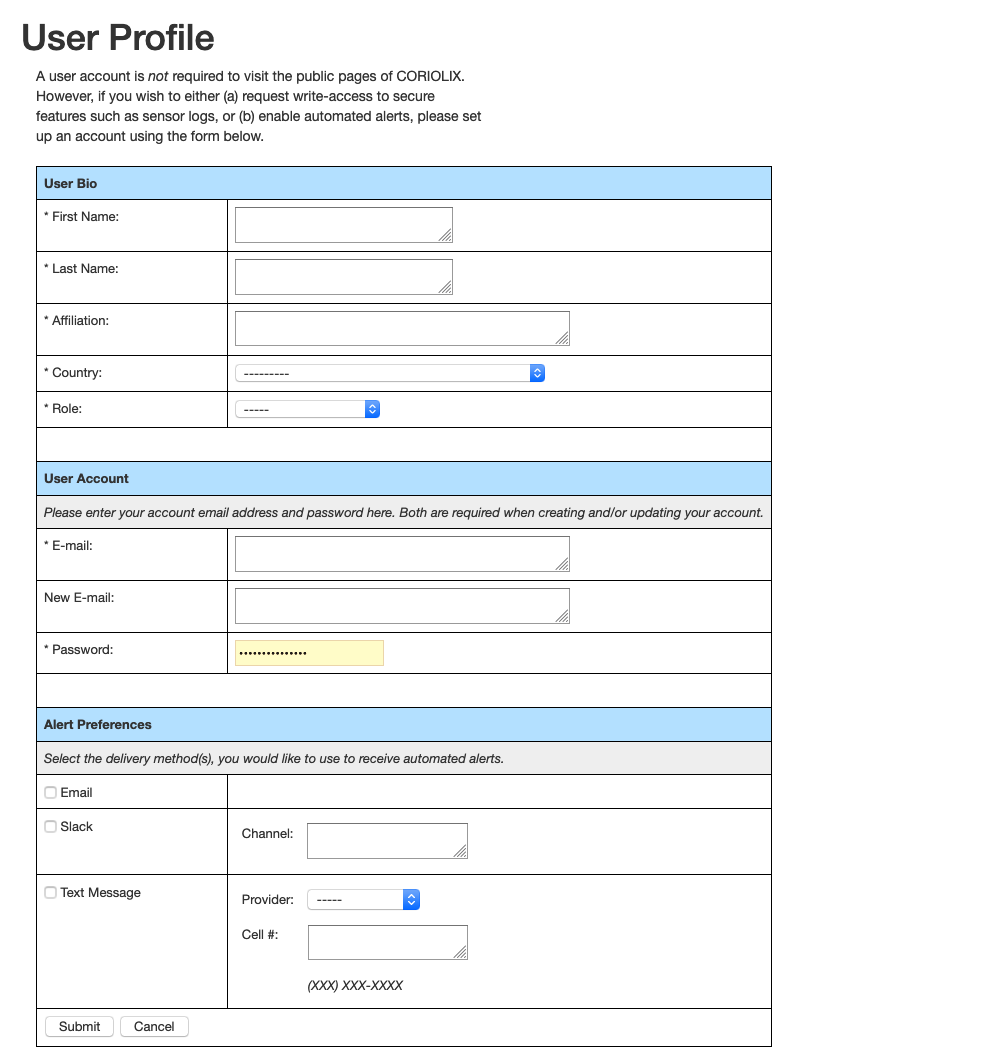
Complete the User Profile setup form and click the Submit button. The email and password entered in this form will be used to log in to CORIOLIX.
Setting Up User Specific Alerts
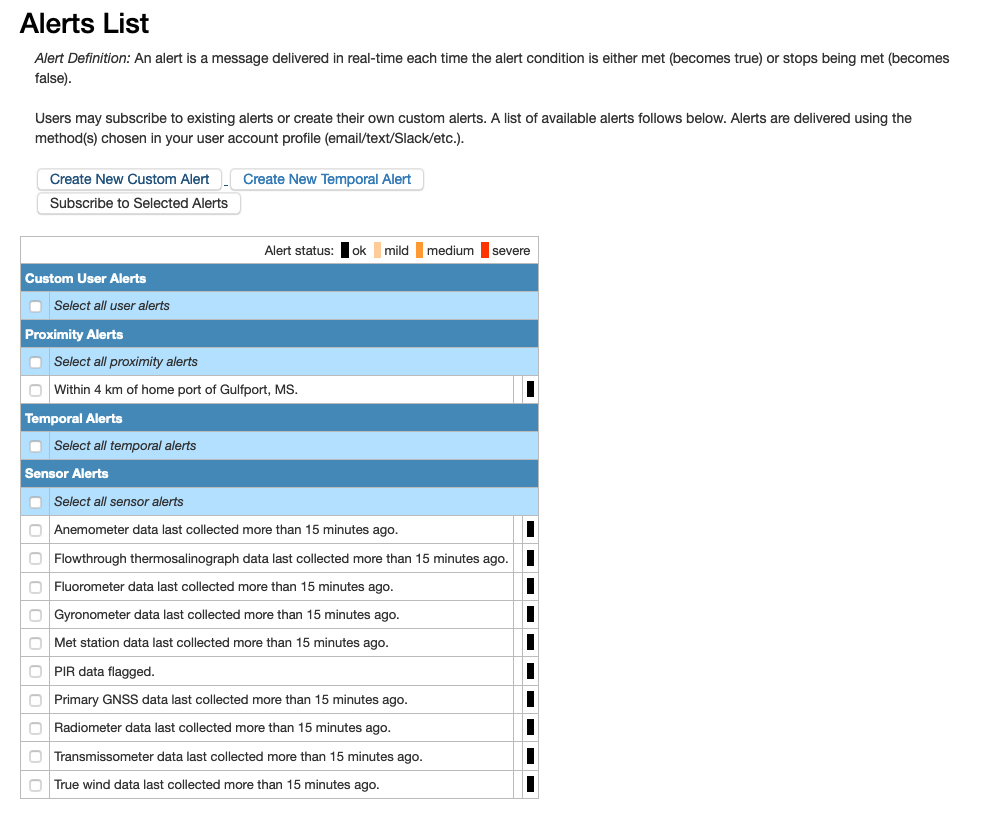
From the site navigation options select: My Account > My Alerts
Alert Types
- Sensor Alerts - Sensor alerts work by evaluating sensor parameter value against a threshold condition. Users may combine up to two sensors or parameters per custom alert. This is where users can create alerts for the Sensor and Parameter Status pages.
- Proximity Alerts - Proximity alerts evaluate the location of the vessel against geographic points of interest (e.g. stations, ports, etc.).
- Temporal Alerts - Temporal alerts evaluate the time now against a datetime parameter for a sensor (e.g. calibration date, warranty expiration date, schedule maintenance data, etc.) to monitor. Users may set an additional parameter, offset, to receive advance notice of a pending event.
Users should place a check next to any alerts in the alert table they would like to receive. Existing alerts may be edited using the "Edit" button. New alerts may be created by using one of the "Create New" buttons.
When selections have been made, click the "Subscribe to Selected Alerts" button to update alert subscriptions.